
Start with a great design. Get a great transfer.
The quality of your finished DTF transfer starts with the artwork you upload. Before placing your order, take a few minutes to check your image size, resolution, background, and small details.
We print your designs as submitted, so these simple checks can help you avoid unexpected results.
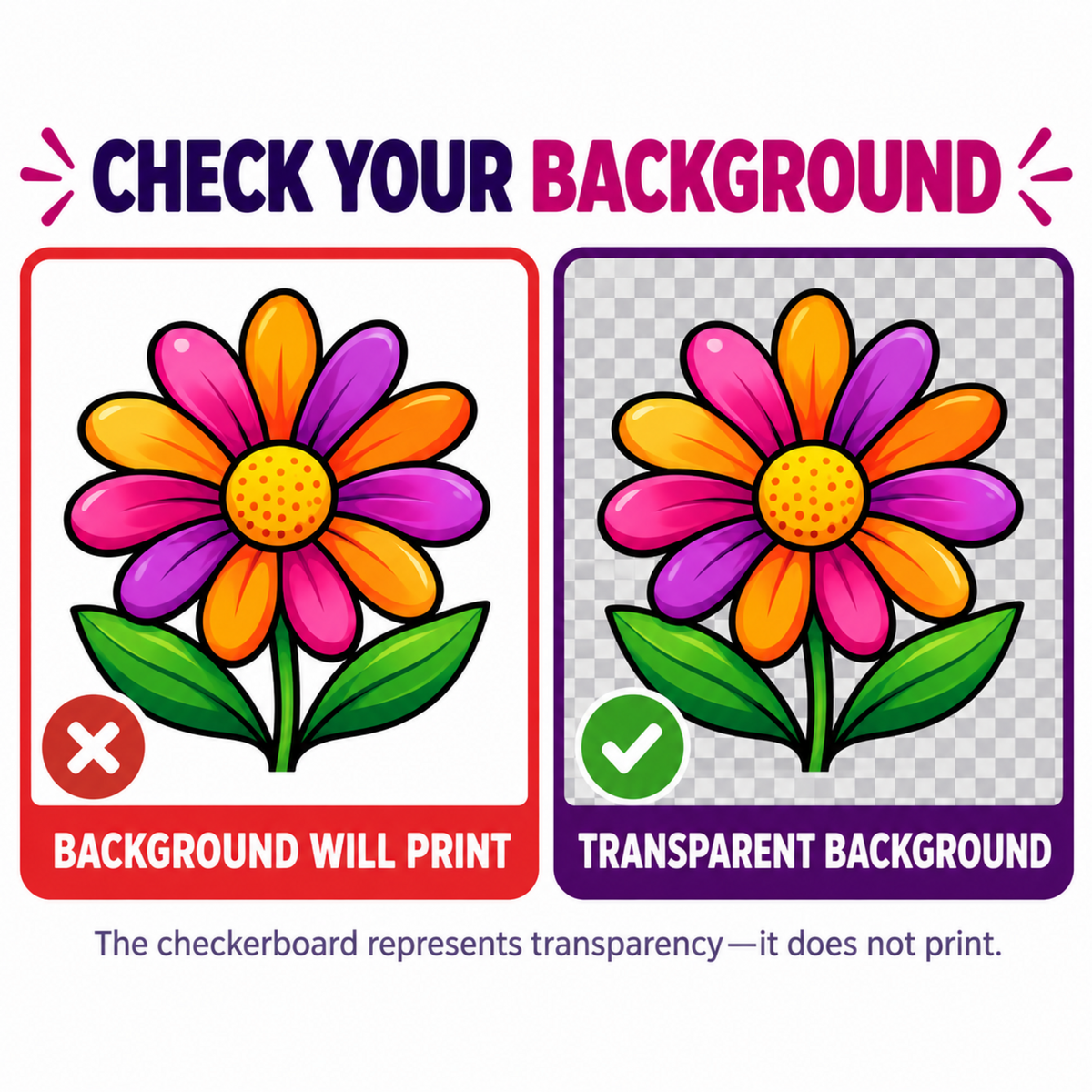
Truly transparent background
If you don’t want a background printed around your design, your file needs a truly transparent background.
A white background, a colored box, or a checkerboard that is part of the image can print on your transfer—even if you intended it to disappear.
Save your design as a PNG with transparency, and check it against both a light and a dark background. Look closely for unwanted boxes, haze, stray pixels, and soft edges.
Tip: A checkerboard shown by your design software often represents transparency, but a checkerboard saved as part of the artwork will print, which often happens with ChatGPT.
CONFIRM TRANSPARENT BACKGROUND
USE VISUAL AID
In the builder, change your background color to confirm if the background tool removed your background completely without removing any part of your image. If the tool does not work well with your design, you will need to remove your background with Canva, ChatGPT or some other software.
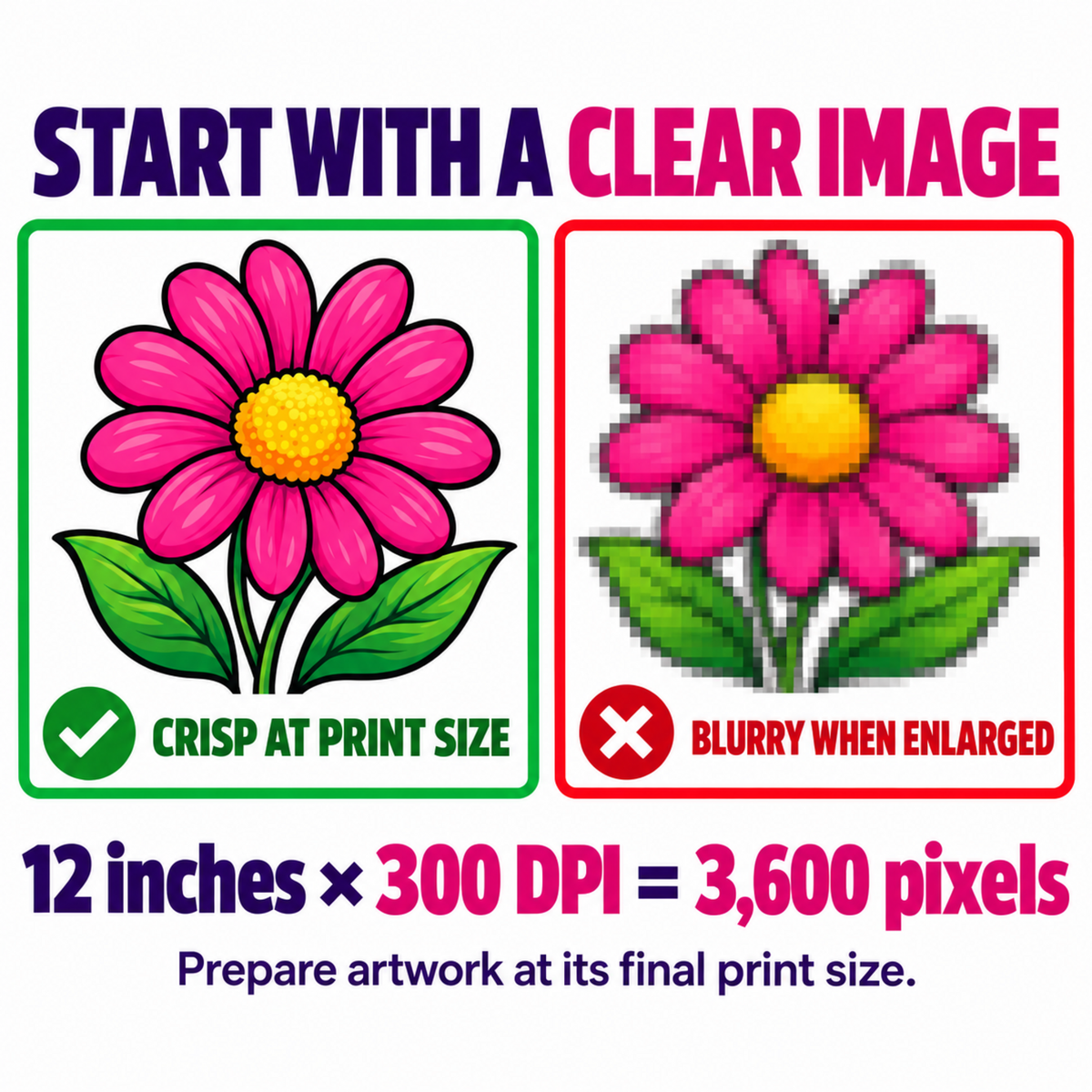
SIZING PRINTS
CREATE BIGGER THAN YOU WANT TO PRINT
For the best results, prepare your artwork at 300 DPI at its final print size.
For example, an image intended to print 12 inches wide should ideally be 3,600 pixels wide. Enlarging a small image can make it blurry or pixelated.
Check your design at its actual print size before uploading. Simply changing the DPI setting on a low-resolution image does not restore missing detail.

DETAILS MATTER
CHECK FOR FINE LINES AND DETAILS
Very thin lines, tiny text, and small isolated elements can be difficult to transfer. They may not have enough printable area for the white ink and adhesive needed to bond to the garment or hard surface.
Be especially careful with:
- Thin fonts and narrow outlines or fonts below 6 pt
- Small distressed marks and splatters
- Tiny details or dots separated from the main design
- Elements around 0.02 inches or smaller
When possible, make these elements thicker or simplify them. Adding a small outline can help strengthen thin text or details while preserving the look of your design.
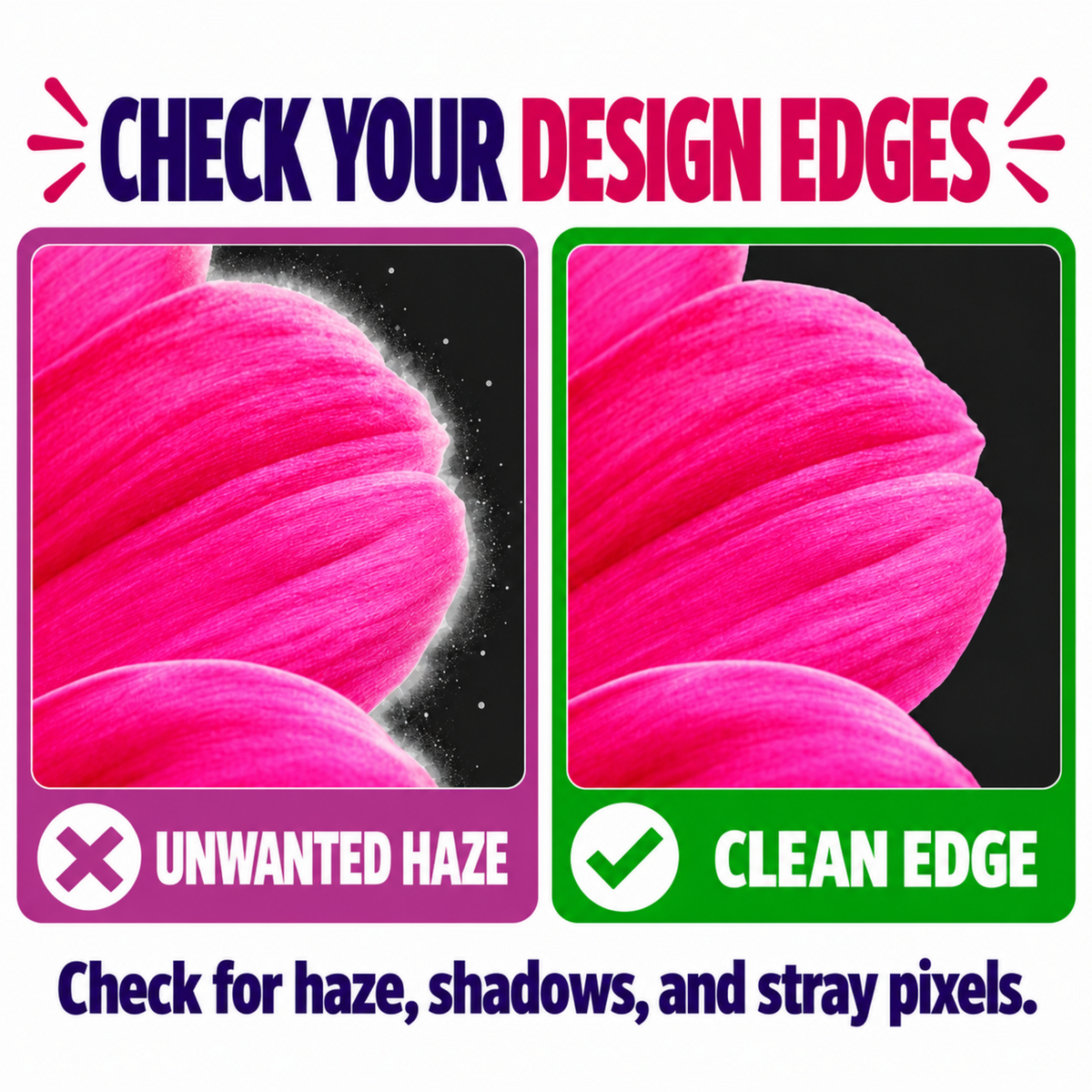
STUFF YOU CAN'T SEE
Watch for shadows, fades, and haze
Soft shadows, feathered edges, glows, and partially transparent areas can produce unexpected results on a DTF transfer. They may appear as a haze, carry unwanted adhesive, or transfer inconsistently.
Zoom in around the edges of your design and remove any effects you don’t want printed. For the cleanest result, use crisp, intentional edges and check your artwork on a dark background as well as a light one.
This is especially important for AI-generated images: a background can look transparent at first glance while still containing faint pixels around the artwork.